

Subscription setup
One subscription URL for Shadowrocket on iOS, v2rayNG on Android and v2rayN on Windows.
Your subscription URL
Sign in to view your personal subscription URL and QR code.
Scan with your client. On the same phone, copy and import the URL instead.
Keep your subscription URL and QR code private.
Choose your device
Back up configurations you want to keep before removing old subscriptions. Skip this for a fresh install.
Windows · v2rayN
v2rayN 5.38 · Full ZIP mirror · Older release
Download and extract the entire ZIP
Download the Windows ZIP, extract all files, then run v2rayN.exe. Do not run it inside the ZIP.
Clear old subscriptions first (important)
Open Subscription → Subscription settings, remove old entries and confirm. Remove any old nodes left in the main list too.
Show screenshots
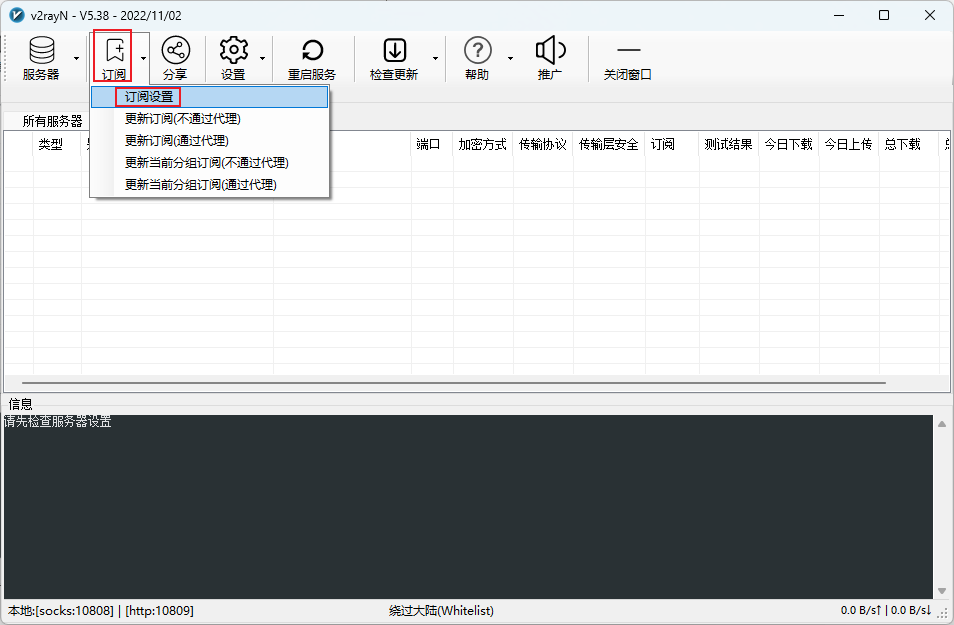
Add the RedGate subscription
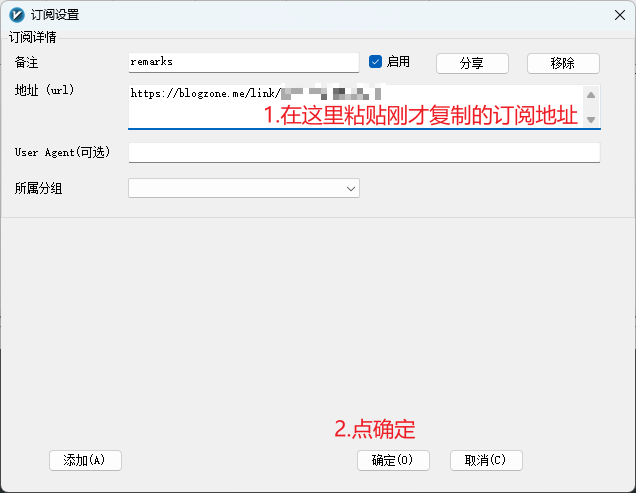
Sign in using the subscription button above and copy your URL. Click Add, name it RedGate, paste the full URL, keep Enabled checked and confirm.
Show screenshots
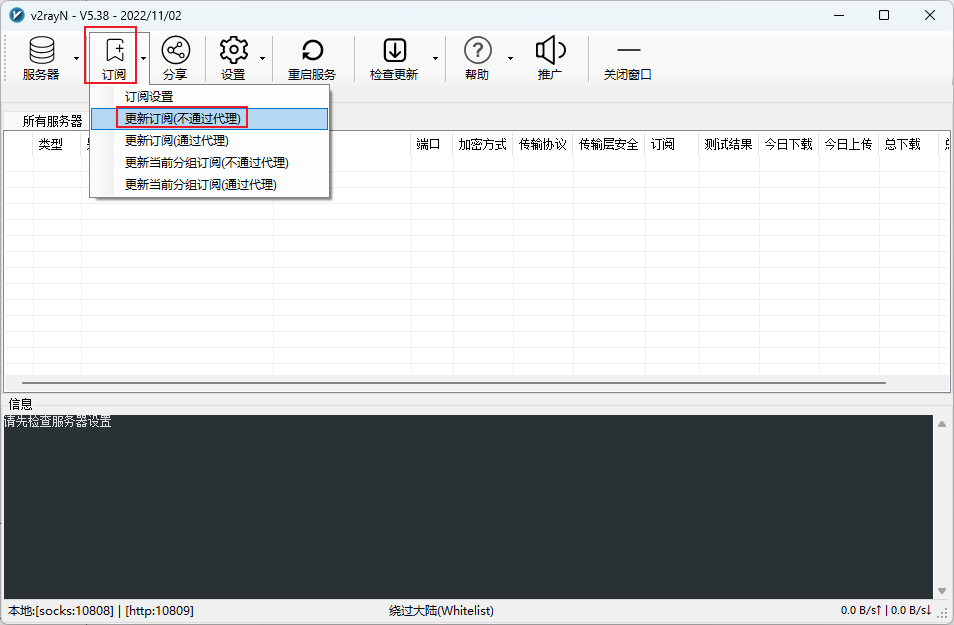
Update the subscription to load nodes
Choose Subscription → Update subscription without proxy and wait for the nodes.
Show screenshots
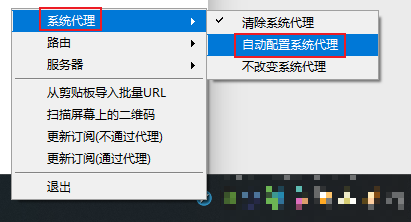
Select a node and enable the system proxy
Select a node and press Enter. Right-click the v2rayN tray icon → System proxy → Set system proxy automatically. Test a website.
Show screenshots
Android · v2rayNG
Version 1.9.33 · Universal APK
Download and install
Use the blue button above to download and install the APK. If asked, allow installation from this source for this installation, then turn that permission off.
Clear old subscriptions first (important)
Open the top-left menu → Subscription group settings. Remove old subscriptions and nodes; skip this if the lists are empty.
Show screenshots

Add the RedGate subscription
Sign in using the subscription button above and copy your URL. In Subscription group settings, tap +, name it RedGate, paste the full URL and save with the top-right ✓.
Show screenshots


Update the subscription to load nodes
Return to the main screen. Open the top-right menu → Update current group subscription and wait for nodes. For the first update, use a direct connection without proxy.
Show screenshots

Select a node and connect
Select a node and tap the bottom-right connect button. Accept Android’s VPN request on first use, then test a website. Disconnect when finished.
iOS / iPadOS · Shadowrocket
Get it from the App Store, subject to availability in your region.
Add your subscription
Copy the full URL above. In Shadowrocket, add a configuration of type Subscribe, paste the URL and save. You can also scan the QR code.
Update and choose a server
Update the saved subscription, wait for the server list to load, then select an available server.
Connect
Turn on the connection and allow iOS to add a VPN configuration when prompted. If it fails, update the subscription or choose another server.